LinkedIn Text Formatter
Format text for LinkedIn into bold, italic and other styles you can copy and paste, live as you type. No signup, works on any device.
Share on Social Media:
This LinkedIn text formatter turns your text into bold, italic and other styles you can paste into LinkedIn, live as you type, directly in your browser. Write your text, then tap Copy on the style you want. No account, no install, so you can format text for LinkedIn on any device in seconds.
How to Format Text for LinkedIn Step by Step
- Type or paste your text. Enter the text you want to format for LinkedIn in the input box on the left. The styled versions build as you type.
- See the styled versions. On the right you see your text in several styles such as bold and italic, each ready for LinkedIn.
- Pick the style you want. Choose the style that suits your post or bio, whether that is bold for emphasis or another look.
- Tap Copy. Tap the Copy button next to the style you want, and the styled text is copied to your clipboard.
- Paste into LinkedIn. Paste the copied text into your LinkedIn post, comment or bio, where it displays in the style you chose.
What a LinkedIn Text Formatter Does and How
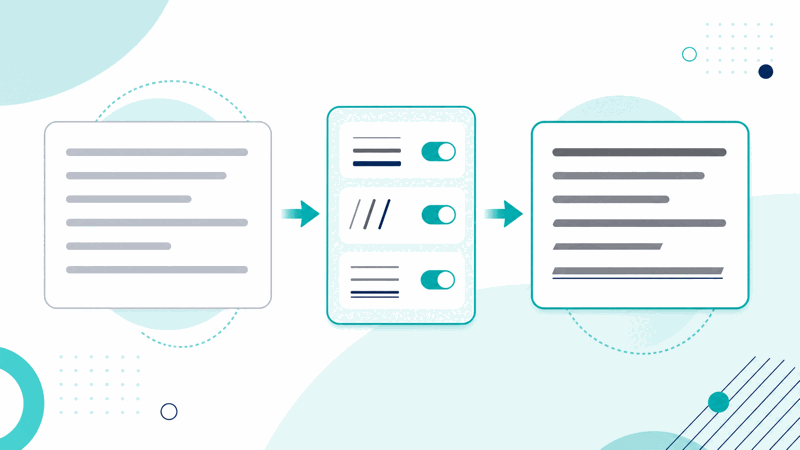
A LinkedIn text formatter styles your text for LinkedIn. LinkedIn does not support rich formatting in normal text, so this tool converts your letters into special Unicode characters that look bold, italic or otherwise styled, which display the same wherever you paste them. You type once, and the tool shows several styled versions you can copy.
In short, the tool converts your text into styled Unicode characters, such as bold, italic, bold italic, monospace, sans-serif, strikethrough and underline. Because these are actual characters rather than formatting, they keep their look when pasted into LinkedIn, where normal bold and italic are not available.
Each styled version is made of Unicode characters that resemble bold, italic or other styles. You copy the version you want and paste it into your LinkedIn post or bio, where it stands out because it is built from characters, not stripped formatting.
Everything runs in your browser, so your text is never uploaded and the styled versions appear instantly and privately. The tool works the same on a phone, tablet or computer, with no account and no limit, so you can format text wherever you post.
Styled Text Versus Plain Text
| Style | What it looks like | Good for |
|---|---|---|
| Bold | Heavy, strong letters | Emphasis and headings |
| Italic | Slanted letters | Titles and subtle emphasis |
| Strikethrough | Letters with a line through | Showing changes or humour |
| Other styles | Monospace and more | Standing out in a feed |
Who Uses a LinkedIn Text Formatter

Pro Tips for Formatting LinkedIn Text
Common LinkedIn Formatting Mistakes to Avoid
Related Tools You May Need Next
For other platforms, our Facebook, Twitter and Instagram text formatters style text for them.

Frequently Asked Questions
How do I format text for LinkedIn?
Type or paste your text in the input box, and the tool shows it in several styles such as bold and italic on the right. Tap Copy next to the style you want, then paste it into your LinkedIn post, comment or bio, where it displays in that style. Everything happens live in your browser, so you can format text for LinkedIn in seconds with no account.
Does LinkedIn support bold and italic?
LinkedIn does not offer normal bold and italic in the way a word processor does. This tool works around that by turning your letters into styled Unicode characters that look bold or italic and keep their appearance when pasted into LinkedIn. Either way, you get styled text that stands out in your post.
Will the formatting stay when I paste it?
Yes. Because the styling is built into the characters themselves, it travels with the copied text and displays the same when you paste it into LinkedIn. Paste it into your post, comment or bio and it keeps its style. It is still a good idea to preview before publishing, as displays can vary by device.
Can I use it for my bio?
Yes. You can format text for a LinkedIn bio just as you would for a post. Type your bio text, pick a style such as bold or italic, tap Copy and paste it into your bio field. Styled bios stand out from plain profiles, though it is best to keep the text readable rather than overly decorative.
Is styled text readable for everyone?
Most people will see the styled text as intended, but very decorative styles can be harder to read, and screen readers may interpret styled characters differently from plain letters. For important information, keep a plain version so the message is accessible to everyone who views your LinkedIn content.
Is my text uploaded anywhere?
No. The formatting happens entirely in your browser, so your text is never sent to a server. The styled versions appear the instant you type, and nothing you write leaves your device, so you can format any text privately on your own device.
Can I use it on my phone?
Yes. The tool runs in your browser and works the same on a phone, tablet or computer, with no app to install. Type your text, tap Copy on a style and paste it into LinkedIn. Because everything runs on your device, it is just as fast and private on mobile as on desktop.
Is the LinkedIn text formatter free?
Yes, it is completely free with no account and no limit. You can format as much text as you like, on any device, at no cost. The tool runs in your browser, so there is nothing to install, and the styled versions appear instantly as you type, each with a Copy button for LinkedIn.